01 / In your workspace
Write your way.
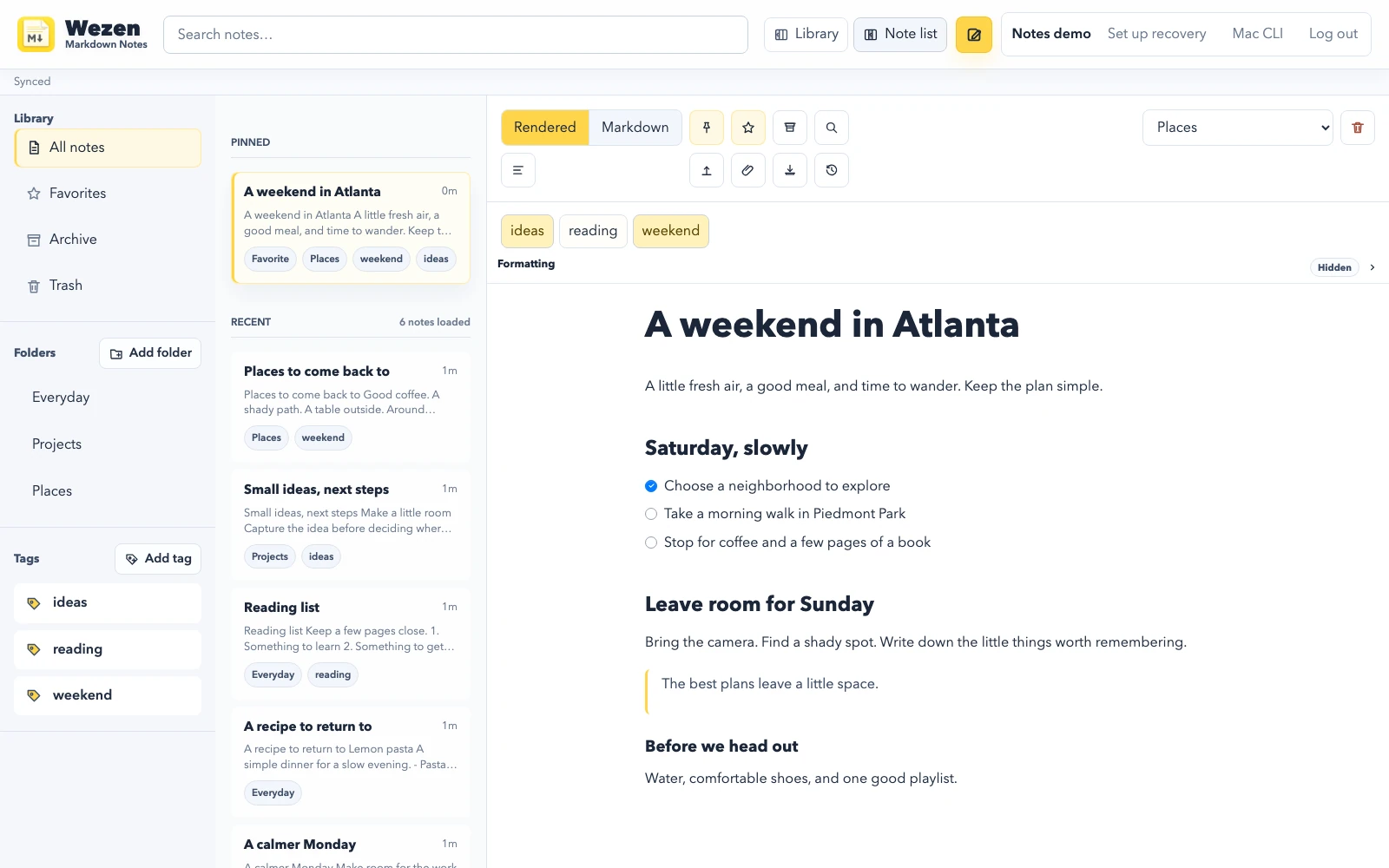
Switch between Markdown and a formatted editing view. Add headings, checklists, links, tables and code, then keep useful files and images with the note.
A little space to think
From a quick idea to the plan that follows. Write in Markdown or a formatted view, organize the pieces, and keep your work close in your browser.
01 / In your workspace
Switch between Markdown and a formatted editing view. Add headings, checklists, links, tables and code, then keep useful files and images with the note.
02 / In your workspace
Give your notes a home with folders and tags. Search your library, pin what matters, or keep favorites close. Archive finished work and restore notes from Trash.
03 / In your workspace
Saving, saved, offline and retry states stay visible. When a connection drops during editing, local drafts hold your changes in this browser. Review both versions if a note changes elsewhere.
A note within reach
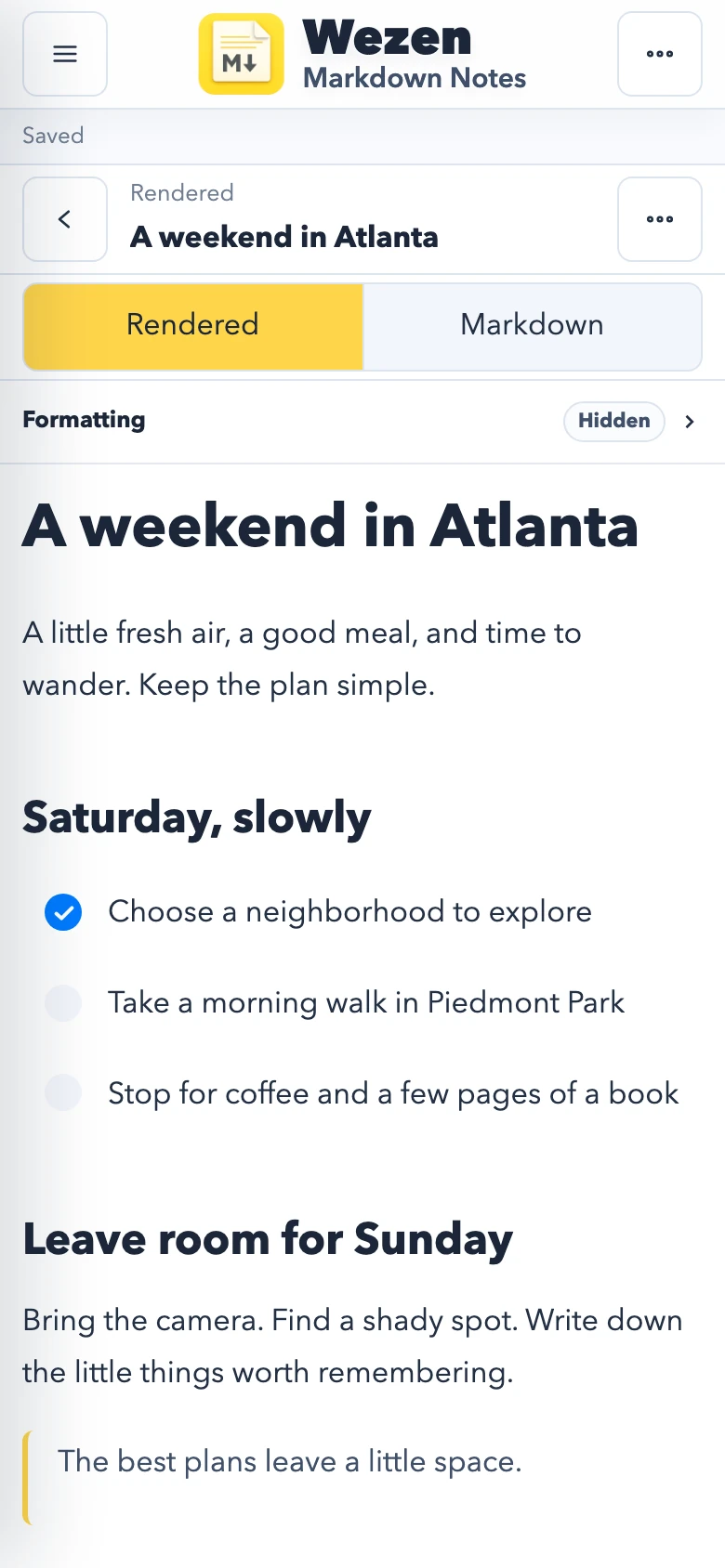
Capture a thought on your phone, look through your notes on a tablet, or settle into a longer draft at your computer.
On smaller screens, the library moves out of the way while you write. Note actions stay together in a scrollable menu, with the same editing, organization and export tools close by.
Look back through earlier revisions, restore a version, or copy its Markdown. Import Markdown and export your writing as Markdown, plain text, HTML or PDF.
Keep a copy. Stay in control.
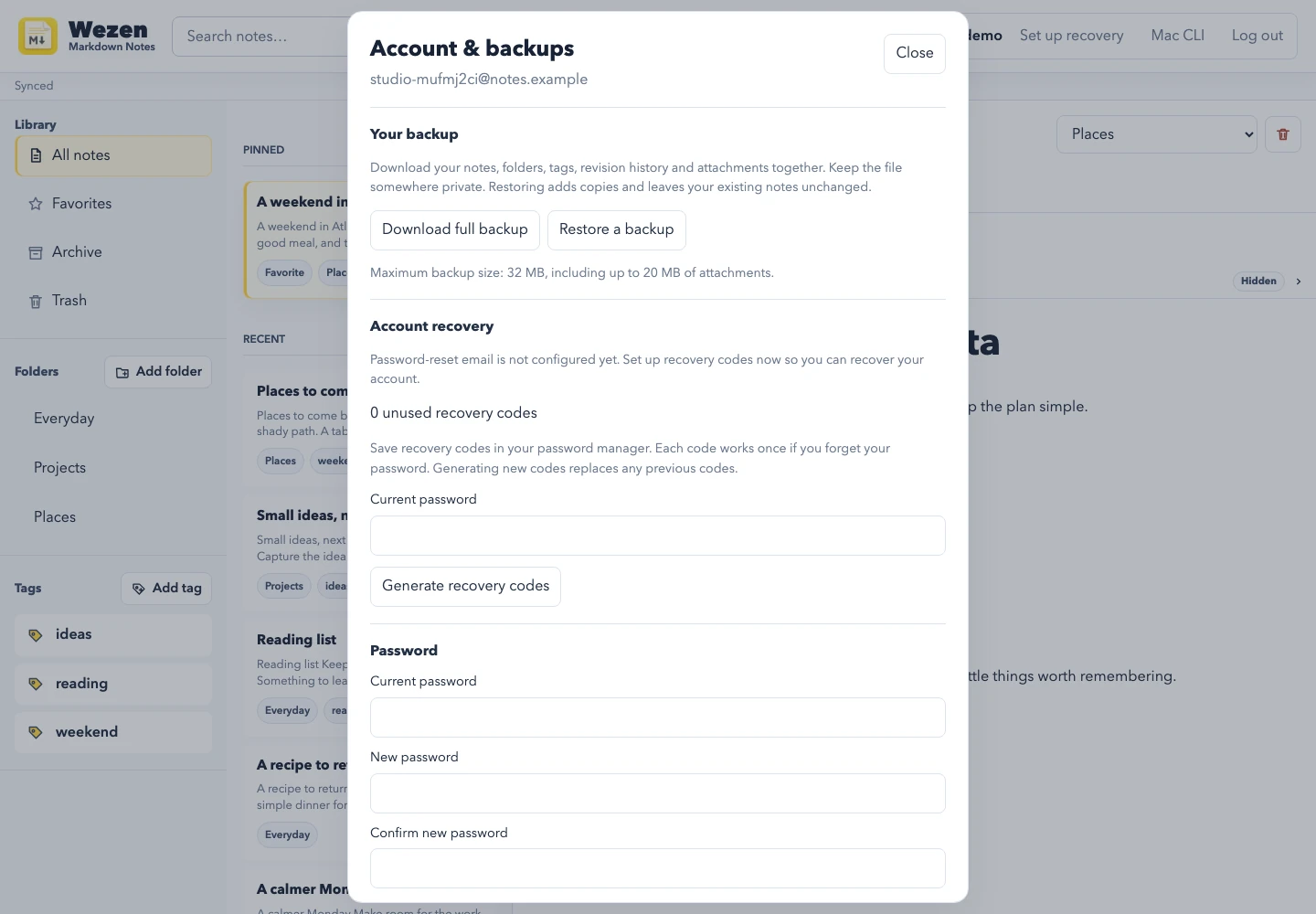
Download a workspace backup with your notes, folders, tags, attachments and revision history. Restore it as new copies while keeping your existing notes in place.
Open Account & backups in Notes to change your password, manage signed-in devices and create recovery codes. Save those codes somewhere private so you have a way back into your account.
What’s on your mind?
Open Notes to sign in, create an account, or get back to your writing.
Open Notes